
How to moderate chat and messages?
Last updated: August 13, 2025
Videosync supports different chat formats to match your event needs:
- Public open chat — All comments are visible to everyone immediately. Moderators can still remove comments after they are published.
- Public moderated chat — All incoming comments go to the moderator for review before being published to the audience.
- Q&A — Messages are shown only to moderators and presenters, never to the audience. Useful for collecting questions during presentations.
- Private chat — When an attendee posts a message, it starts a private conversation with the moderators, similar to a private messaging app.
Moderation methods
There are multiple ways to moderate the audience chat and Q&A:
- Chat moderation view — A dedicated interface to review, publish, and discard comments. Ideal for moderators without Videosync credentials or for tablet-based moderation.
- Live Control Room — Moderate comments directly alongside other stream controls during RTMP streaming.
- Web Studio — Moderate comments within the browser-based production interface.
Moderation from Live Control Room
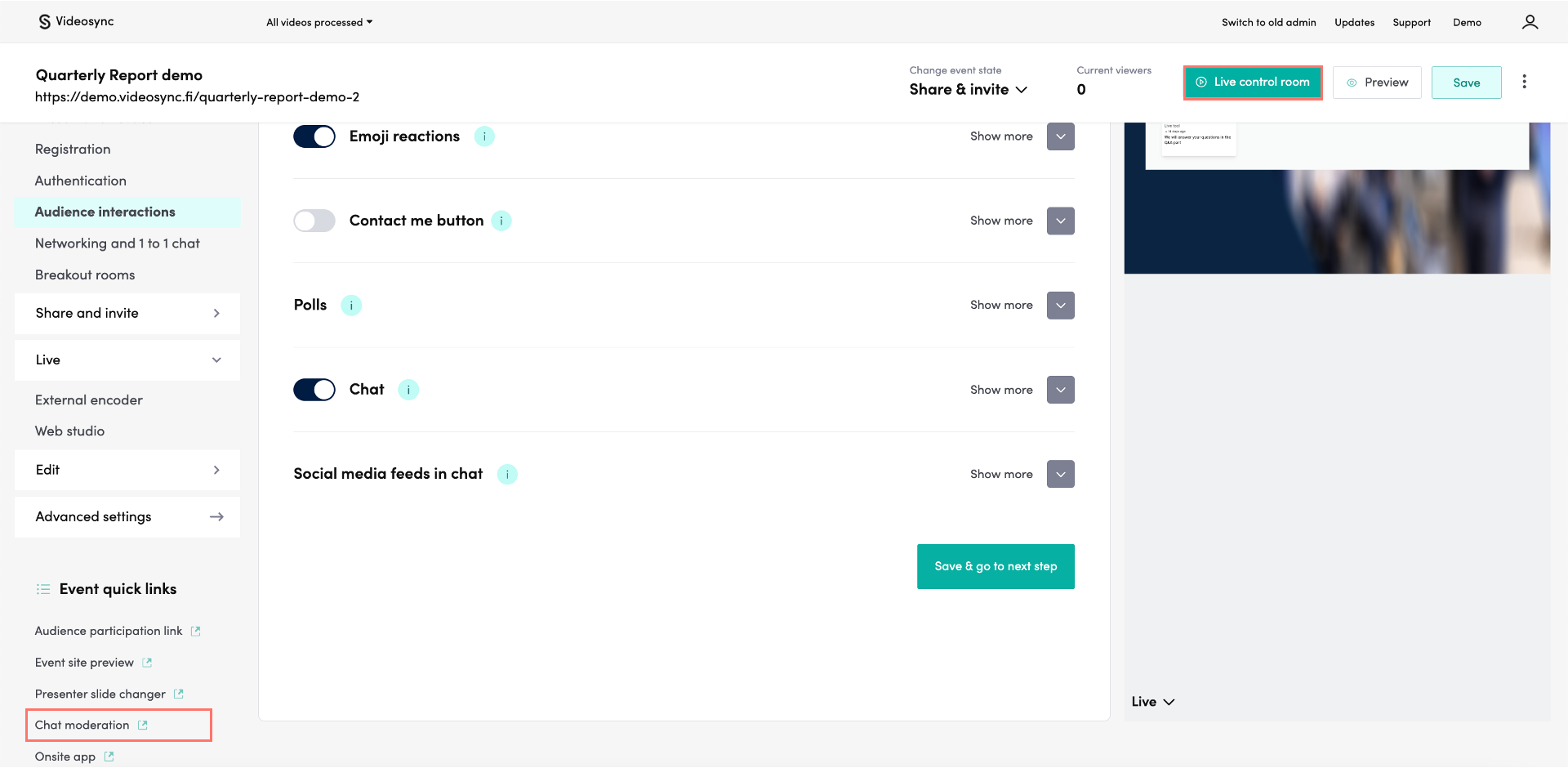
You can access the Live Control Room from the top right corner of the event.
If someone without Videosync credentials is moderating the chat, or you want to control it easily with a tablet, you can use Chat moderation in Event quick links.
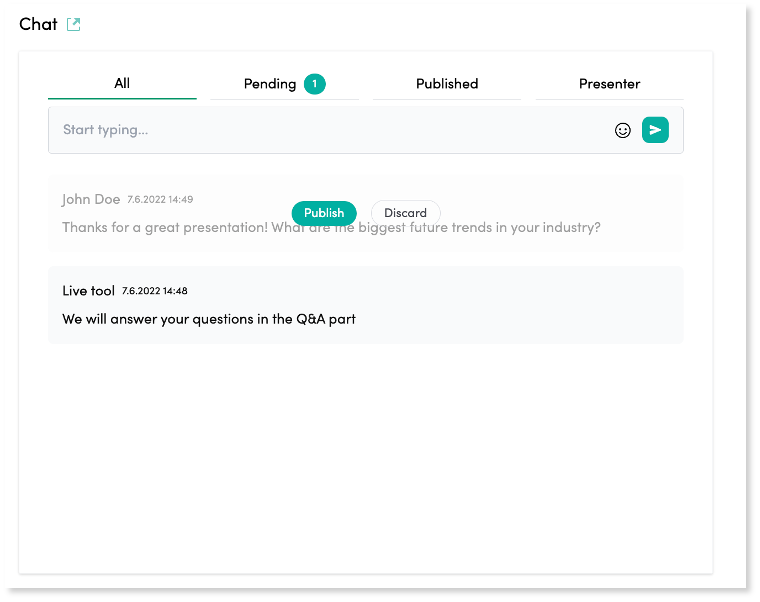
In Live control room, you can access the Chat area below presentation slides. There you can see all messages, published and pending ones if moderation is enabled. If you want to publish a message, so that they’re also visible on the event site, hover on top of a message and click Publish. You can also post messages and replies as a moderator by typing and sending your message.
Can't find what you're looking for?
Our AI assistant is here to help you find the information you need.